| |
| Topic |
Click on the
thumbnail |
| |
|
| Step 1:
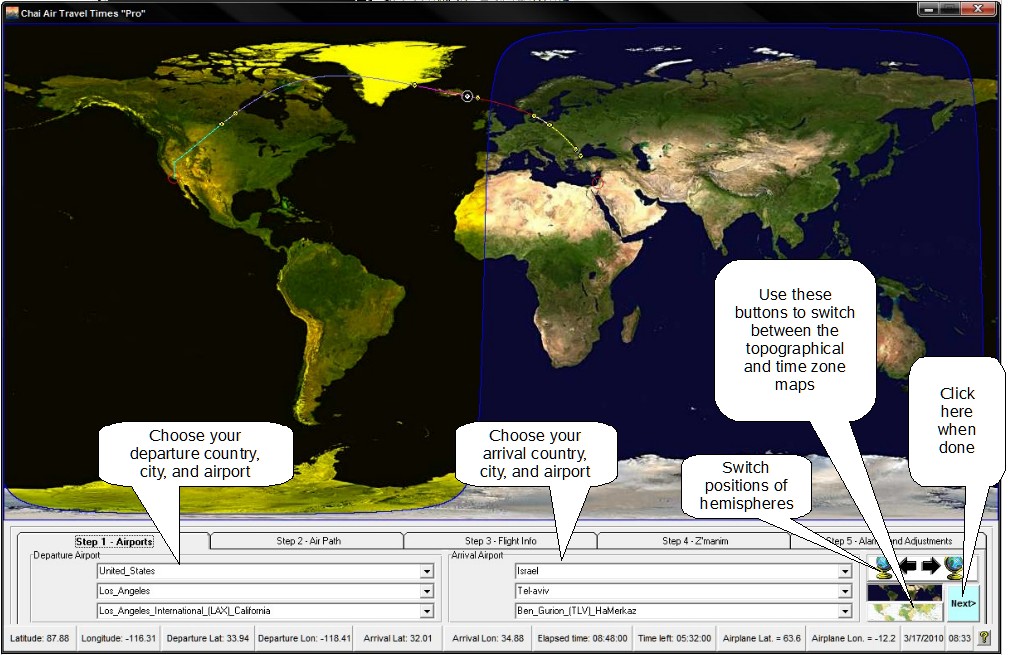
Choosing the departure and arrival airports (self explanatory)
Choose the correct orientation of the hemispheres
depending which way your airplane is flying.
Use the map buttons to choose between the topographical
and time zone maps. The map type can also be changed later.
If you choose the time zone map, you can pick your
departure points and arrival points using a mouse (activate that mode by
clicking the "Mouse" mode radio buttons).
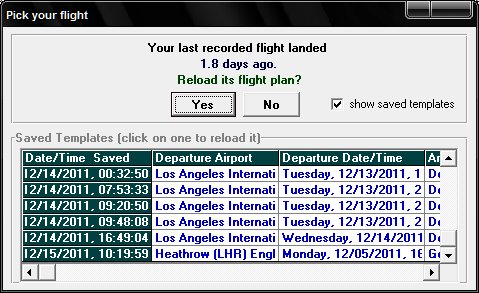
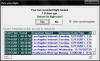
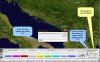
Flight information from previous flights are stored in
templates and can be recalled to predefine Steps 1-3. (See Picture 3).
Click on one of the desired row to reload a template. This is invaluable
for beginning the program when using GPS enabled navigation as soon as possible
after the pilot allows the use of electronic devices. (I.e., prepare Steps
1-3 before the flight, store it, and then recall it.)
|
 , ,
 , ,
|
| |
|
| Step 2: Fitting the flight
path.
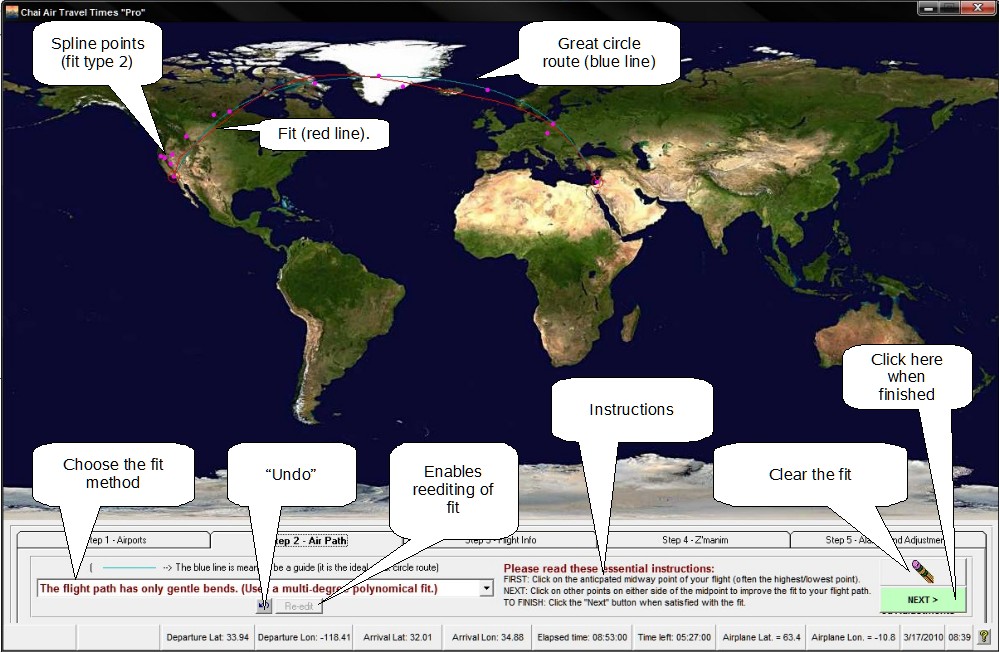
At the onset of the flight, the ideal great circle route
fit (third fit type) should be used since the actual air path is still unknown.
After the flight path becomes apparent, the great circle
fit should be erased and a more accurate one used in its place. The first fit
type, i.e., way points connected by great circles, usually gives the best fit in
most situations.
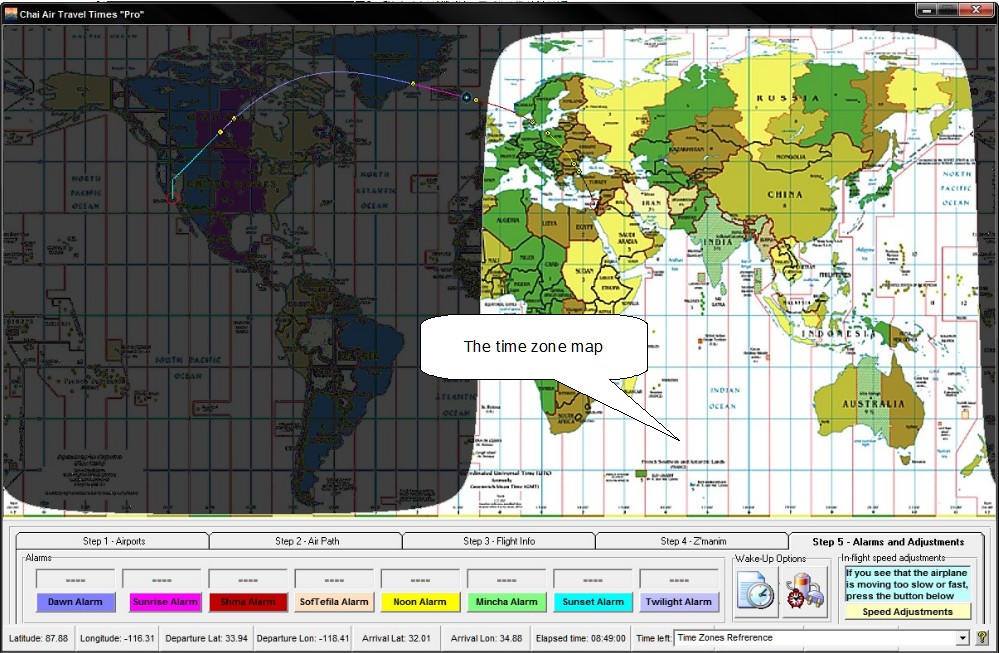
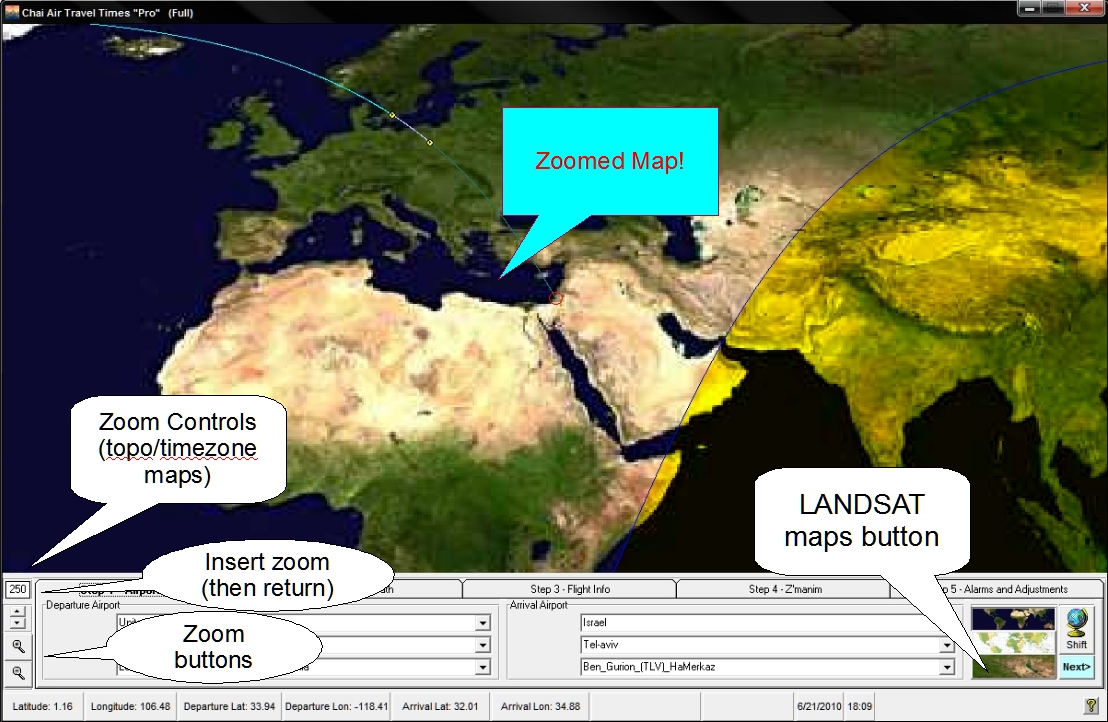
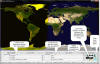
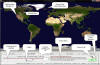
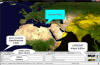
The topographical and timezone maps can be panned and
zoomed. Left click on the maps at any zoom level or pan position to add fit
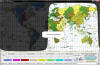
points, etc. LANDSAT satellite maps can be used for all the map functions
that are available for the other maps.
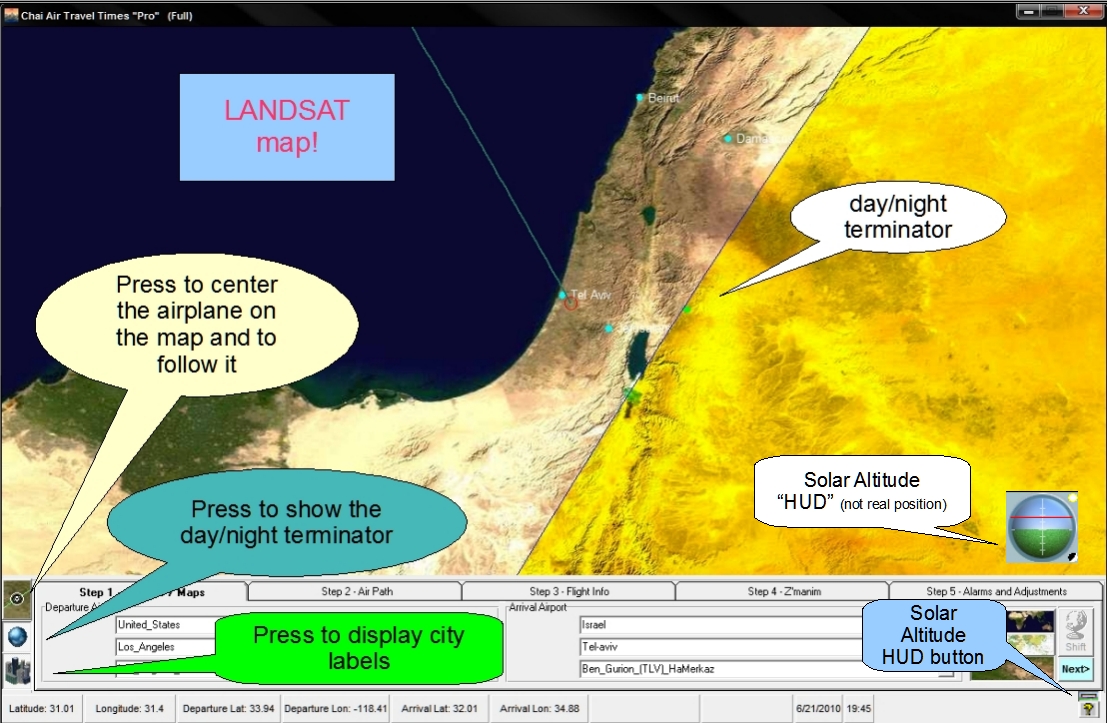
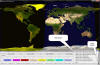
The day/night terminator can also be shown by pressing the
day/night button. The terminator is calculated in a manner that takes
account of atmospheric refraction and thereby represents the mishor
sunrise/sunset on the ground to an accuracy of approximately a minute.
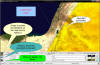
Click on the LANDSAT maps to add fit points, etc.
Pan it along the entire world to follow your flight and watch the approach of
sunrise/sunset to your airplane's position to accuracies of bettter than a
minute (ideal for davening k'vasikin). Click on the Solar Altitude "HUD"
button (next to the "Help" button) to graphically display solar altitudes
and azimuths (not shown in the picture) along
the flight path when running the cursor within longitude range of the air route.
When the flight path is changed, the "Reedit" button is
pushed and the fit can be re-edited. This usually consists of using the
"Undo" button and then clicking on new way points (or spline points for the
third type of fit, i.e., the polynomial fit).
Click on the "Next" button to finish. The fit is
drawn in red.
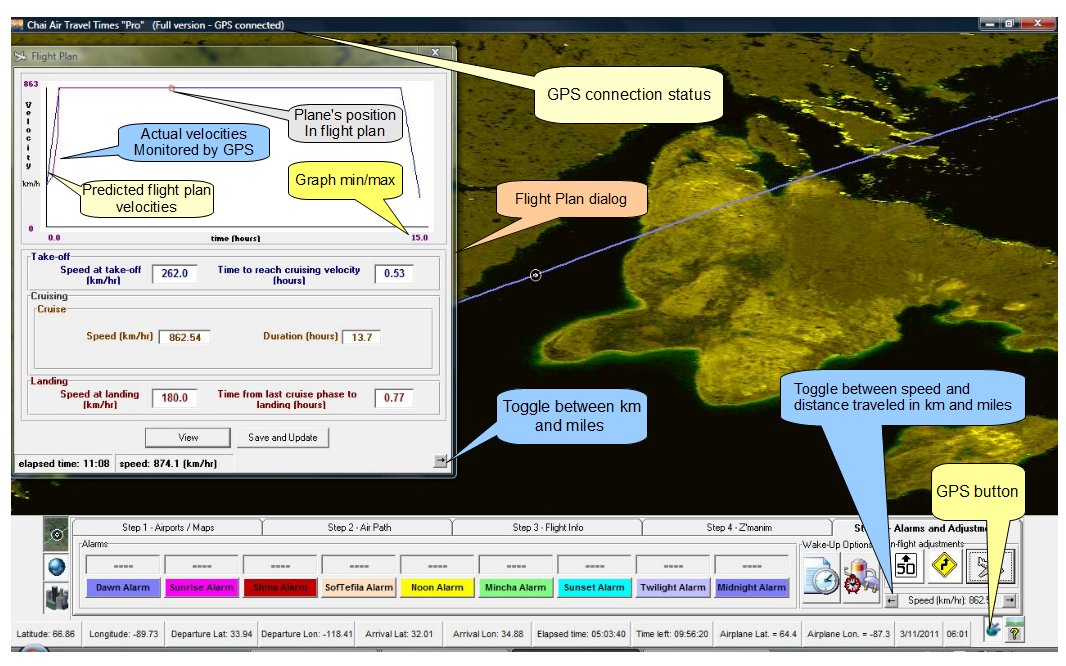
GPS enabled navigation:
Choose the "GPS determines the flight path whenever possible" in Step 2.
Your GPS unit will determine the flight path automatically and keep the zemanim
updated. (To use this option you must have a NMEA v3 083 compatible USB
GPS dongle.) GPS navigation can be used to daven k'vasikin to
a minute accuracy. That is, one waits until the day terminator intersects
with the airplane's position. That moment corresponds to the mishor netz
on the ground to about a minute accuracy. To determine the moment of
intersection to maximum accuracy, it is advisable to watch for the intersection
while using the LANDSAT maps.
|
 , ,
 , ,
|
| |
|
| Step 3: Flight
information.
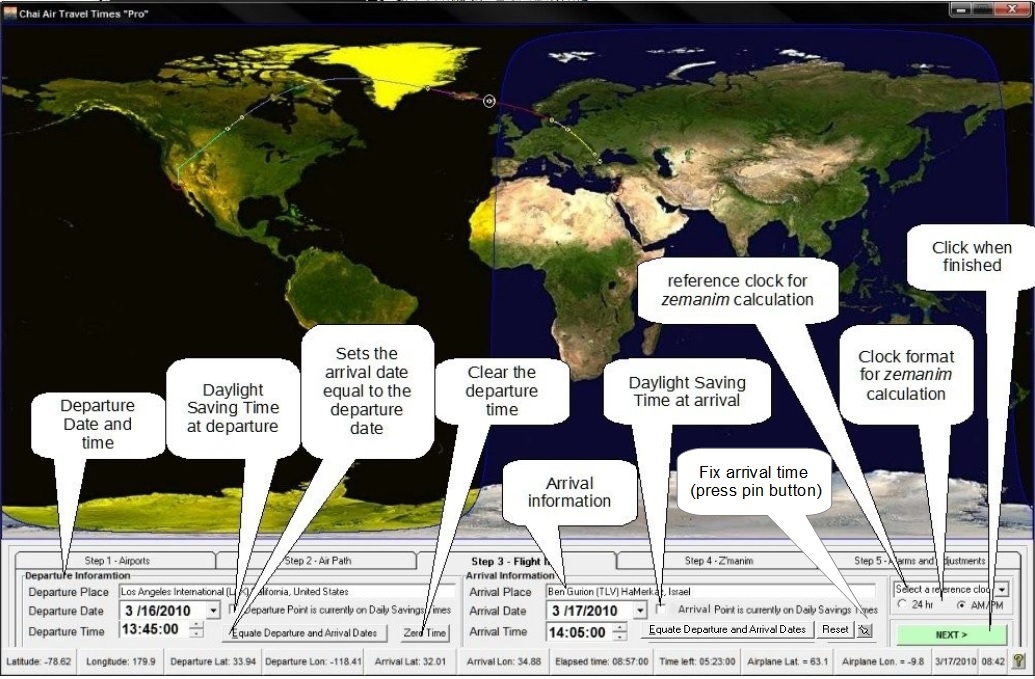
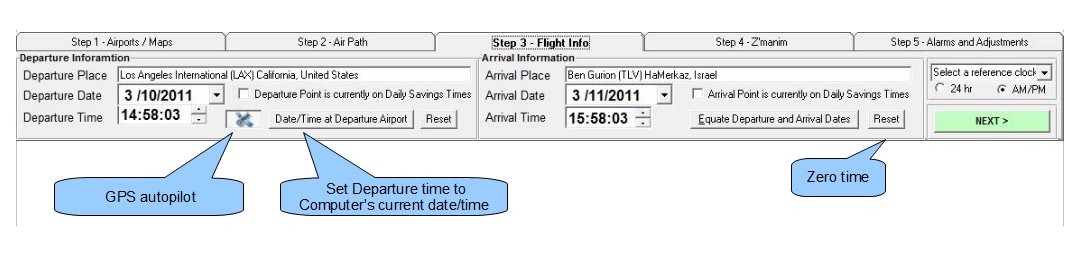
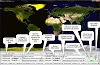
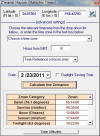
Fill in the information on your ticket. For most
parts of the world, it is no longer necessary to click the Daylight Saving (DST)
check boxes, since the program will automatically determine if DST is in effect
in the departure and arrival airports. Use the "Reset" buttons to zero the
times. Use "Equate.." button to make the departure and arrival dates
equal.
After the plane takes off, you should update the departure
time with the actual take-off time from the runway for the "Departure Time"
(unlike the case for the online times). If you are using GPS assisted
navigation, then the program will adjust the arrival time you entered before
take-off based on the actual velocity of the airplane during its flight.
In the case GPS reception is spotty, the program may not have enough information
to determine the correct arrival time. To rectify this situation, at any
time enter the predicted arrival time that your airplane has displayed on the
consoles during flight, and press the "pin" button. This will fix the
arrival time throughout the calculations to be consistent with the new predicted
arrival time.
Choose the format of how you want the zemanim to
appear (i.e., according to which time zone your watch is set, and whether to use
a 24 hour or AM/PM format)
Click the "Next" button to calculate the zemanim
|
|
| |
|
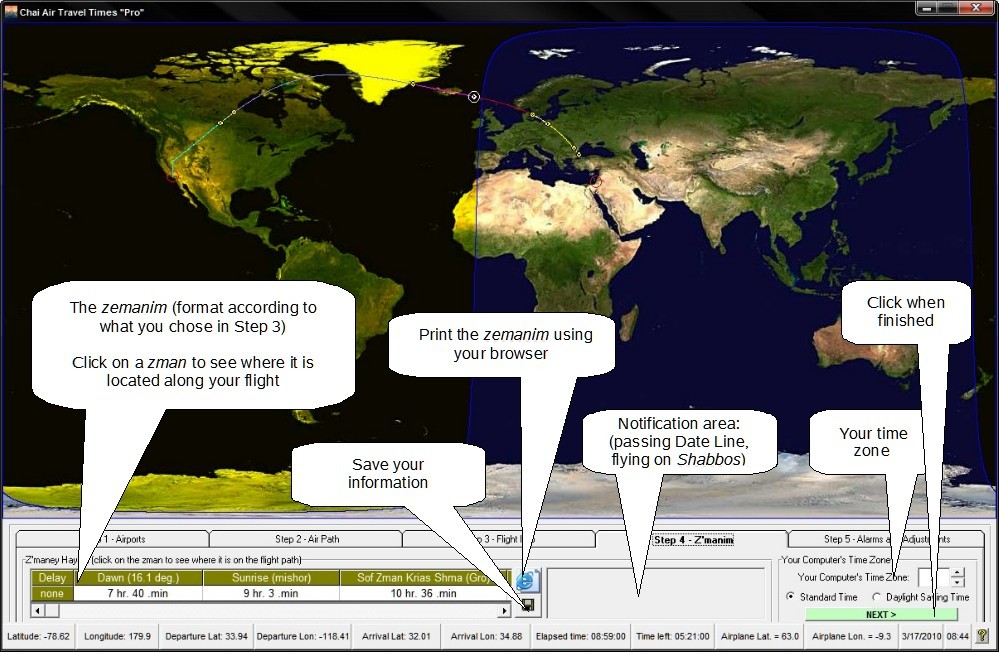
| Step 4:
Zemanim
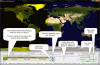
Click on any of the zemanim to see where they occur
along the flight path.
Click on the "Browser" button to calculate your
individualized "Chai Air Times" table. You can use your browser to print
out approximate tables before your flight.
Store the route information with the "Save" button.
(Note that you are also requested to save the information before exiting the
program.)
Check the time zone and Daylight Saving Time status read
from your computer.
Click the "Next" button to display the zemanim on
the flight path
|
|
| |
|
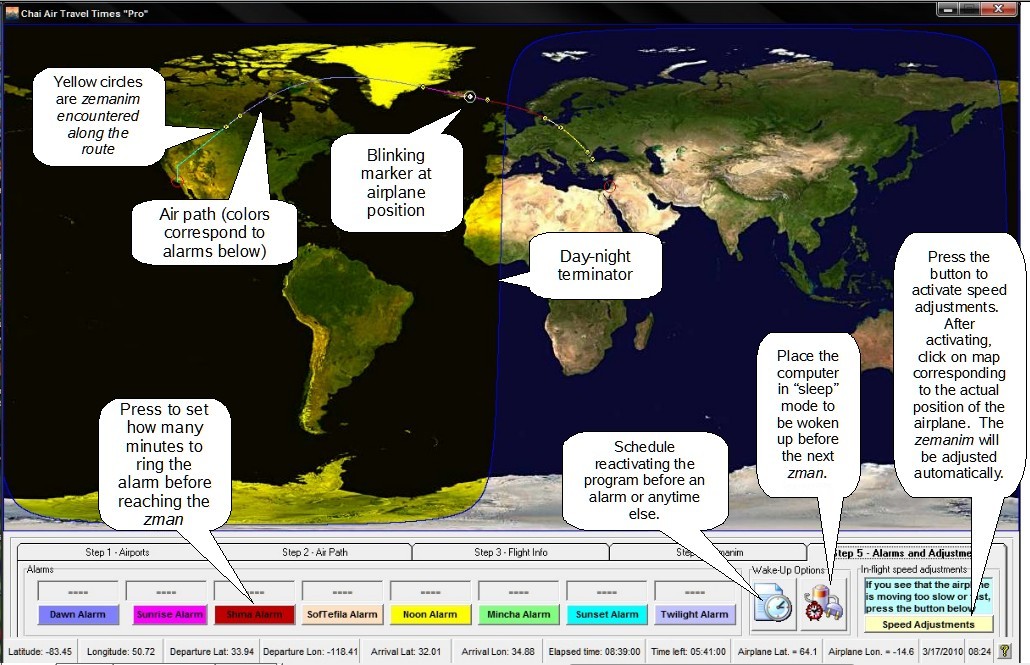
| Step 5:
Zman Alarms
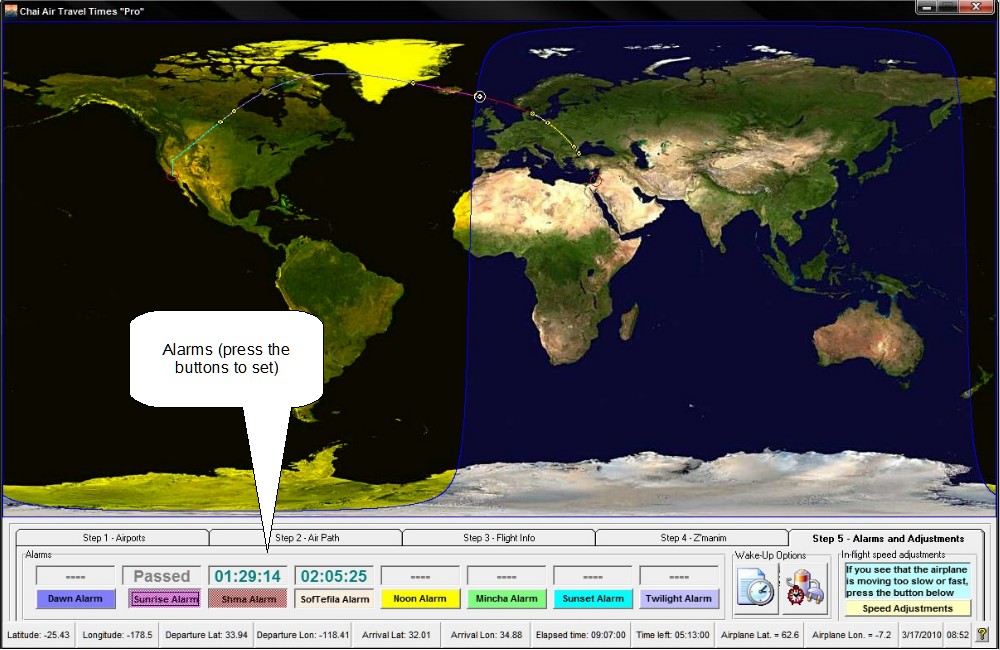
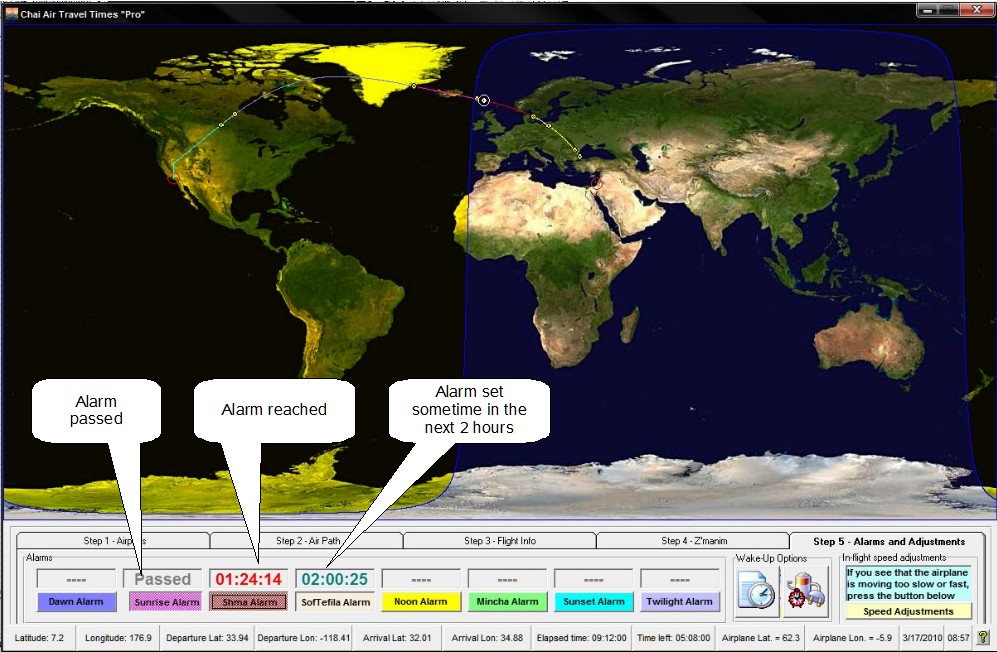
Set Alarms to sound before reaching a zman by
depressing the button for that zman and entering the number of minutes to
sound before the zman is reached. After activating an alarm, a
countdown to the zman
is displayed in blue. When the alarm is reached, the countdown appears in
red and beeps sound until the alarm is deactivated. After the zman
is reached, the word "Passed" is displayed.
Task schedule button: Sets a system wake-up call to
reactivate the computer from sleep and restart the program when an alarm is
reached.
Power saving button: Places the computer directly
into "sleep" mode. The computer will be woken when the alarm sounds.
Use this button to save battery life. (Note, many airlines now provide 110 V
power sockets, so there is no need to place your computer into hibernation.)
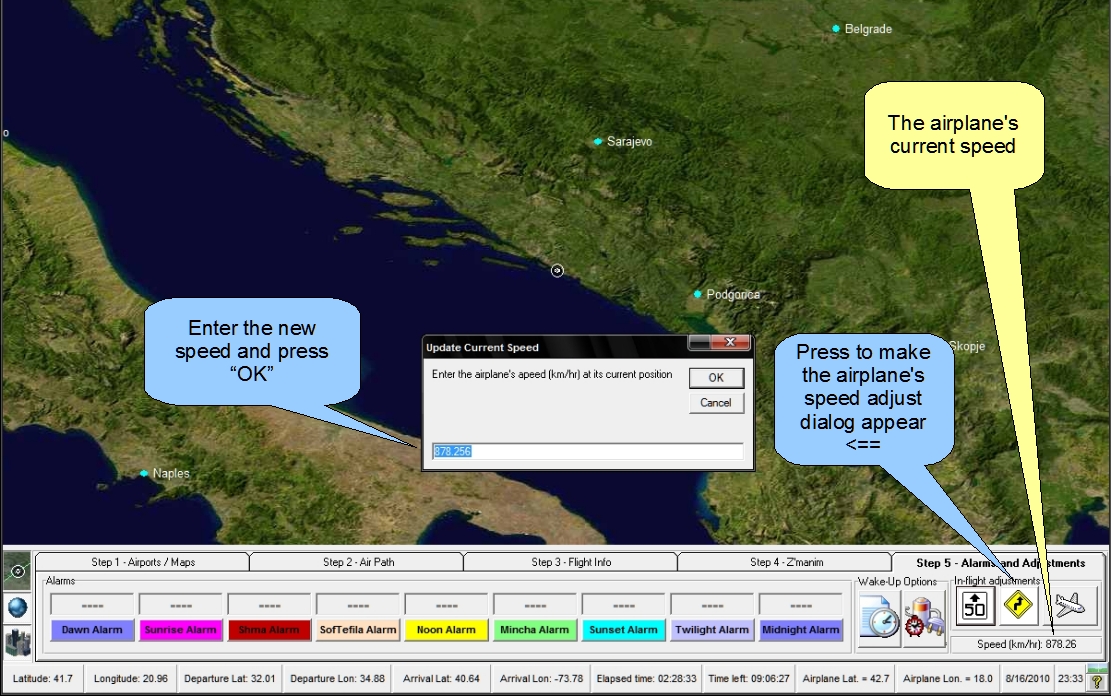
Speed adjustment button: The speed of your airplane
changes and will therefore gain or loose ground to the airplane marker in the
program. Adjust this by clicking the button, and then clicking on the
place corresponding to the actual position of the airplane. The zemanim
will be adjusted accordingly. This option is disabled when using GPS
assisted navigation.
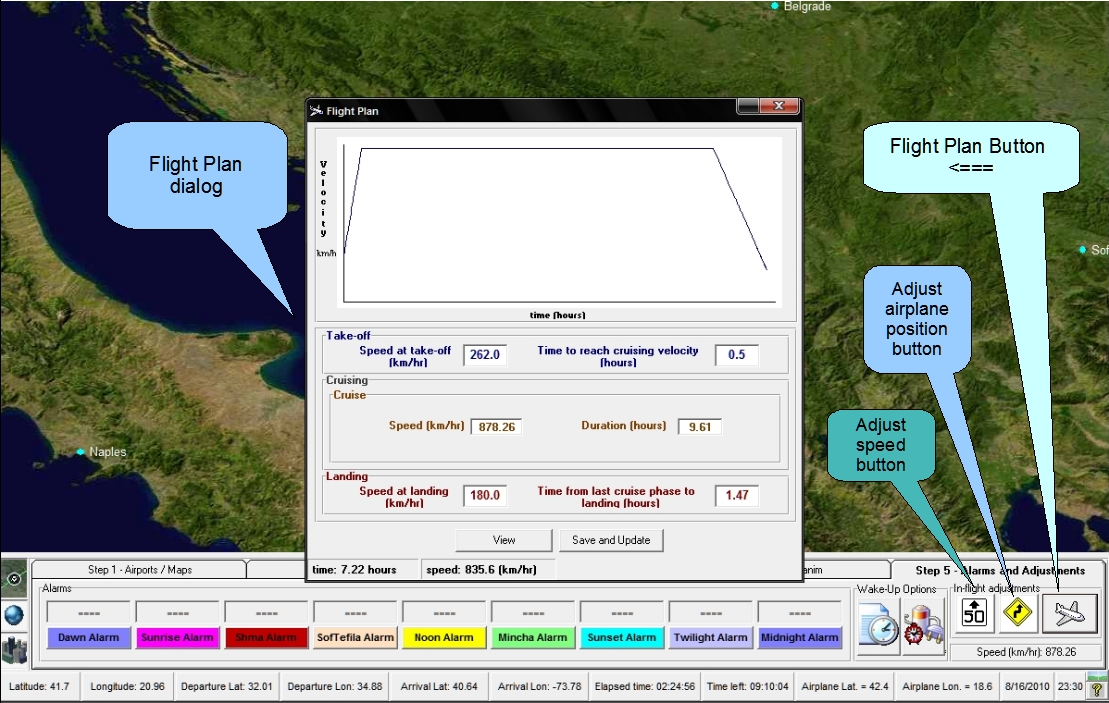
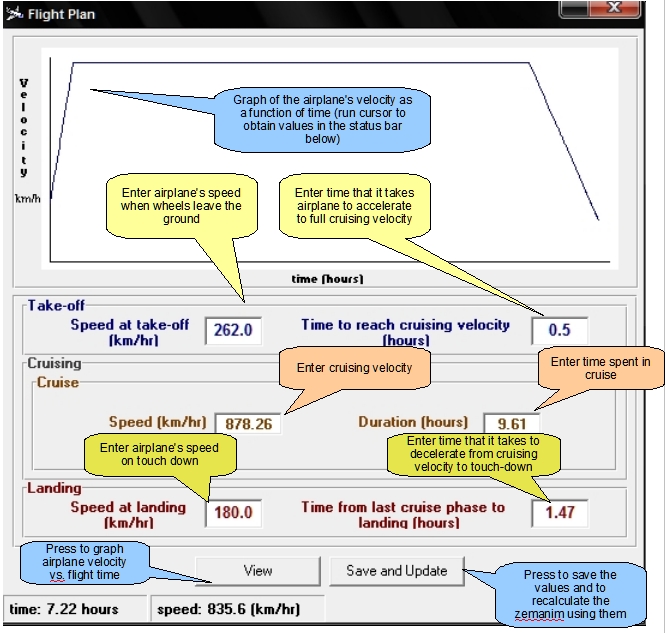
Adjustment Buttons and Flight Plan
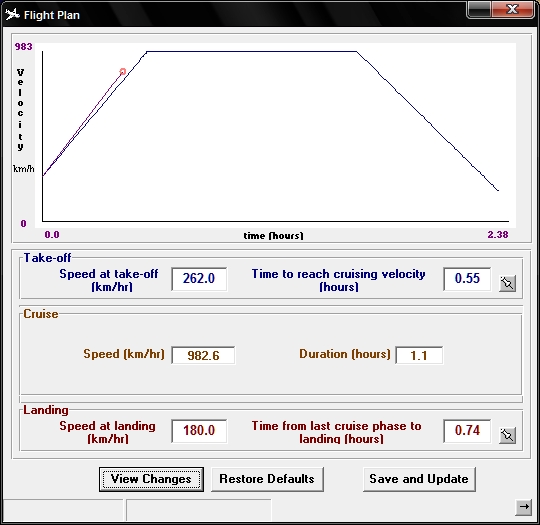
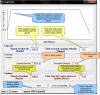
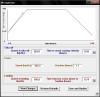
As of version 2.0.0, a flight plan interface has been
added that allows a simply modeling of the airplane's acceleration phase from
take-off to cruise, cruise phase, and deceleration to landing phase.
Access this control with the "Flight Plan" button. You can change your
flight zemanim by modifying the parameters within the flight plan dialog, or by
using the "Position" and "Speed" buttons. If you notice that the position
of your airplane is different from the program's position, then click the
"Position" button and then click where the plane is actually located. The
zemanim will be recalculated after modifying the flight plan while conserving
the arrival time if possible. If you notice that the actual air velocity
is different from the predicted one, use the "Speed" button to adjust it.
The zemanim will be recalculated reflecting the new speed while conserving the
arrival time if possible. (New as of
version 2.4.0 (not shown): toggle buttons have been added to the speed
indicator and Flight Plan dialog to switch been km/h, miles/hr to allow you
follow your flights on domestic US carriers that present all their flight
information in miles. The speed indicator toggle buttons can also be used to
toggle between speed and distance traveled in km. and miles.) When using
GPS enabled navigation, the adjustment is disabled. As of version 3.3, a
"Restore Defaults" button as been added (see figure 10) in case the program
can't find a good solution. There are also buttons to pin the takeoff and
landing times in order to help find a good solution. (As of version 3.4,
the program is much more capable of finding a good solution, and no user input
should be necessary.)
GPS controls
As of version 3.0.0, effort has been dedicated to committing the program's
control to a GPS device (NMEA 0183 v3 compatible USB dongle).
The program user must arrange to travel with
an airline that allows GPS devices onboard
(lists
are posted on the web) as well as reserve a
window seat (to permit reliable GPS reception). The user still
needs to choose the departure and arrival airports as well as to enter the
estimated times of departure and arrival. Almost anything else can be
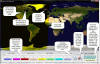
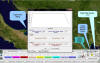
handled automatically by the GPS device. Pictures 7 and 8 depict the new
interfaces, e.g., the GPS button (which activates automatically when there is
active GPS communication), as well as the GPS path trace in the Flight Plan
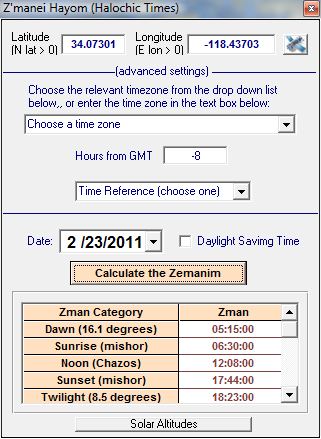
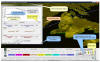
dialog. Figure 9 depicts the GPS button addition to the zemanim dialog
(the button with the satellite icon). By pressing that button, zemanim
will be calculated at the current GPS coordinates.
|
 , ,
 , ,
 , ,
 , ,
 , ,
 , ,
 , ,
 , ,
 , ,
|
| |
|
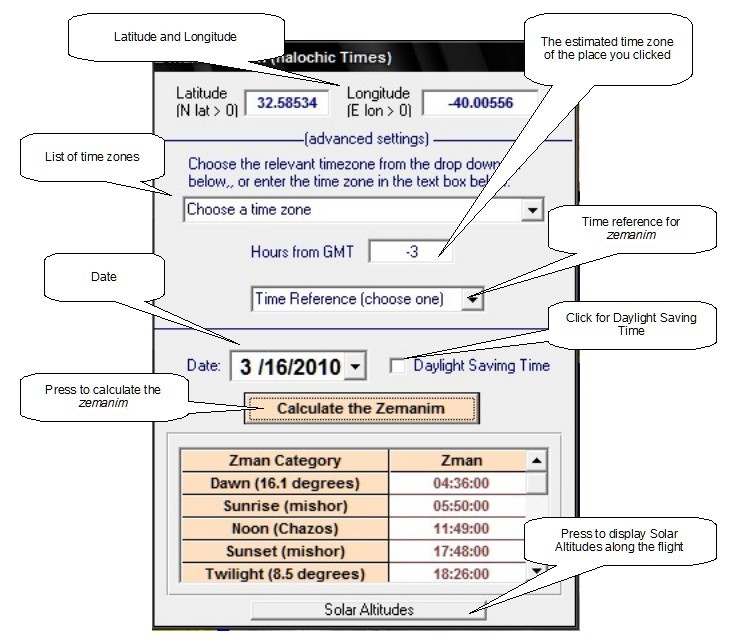
| Zemanei Hayom anywhere on
the map.
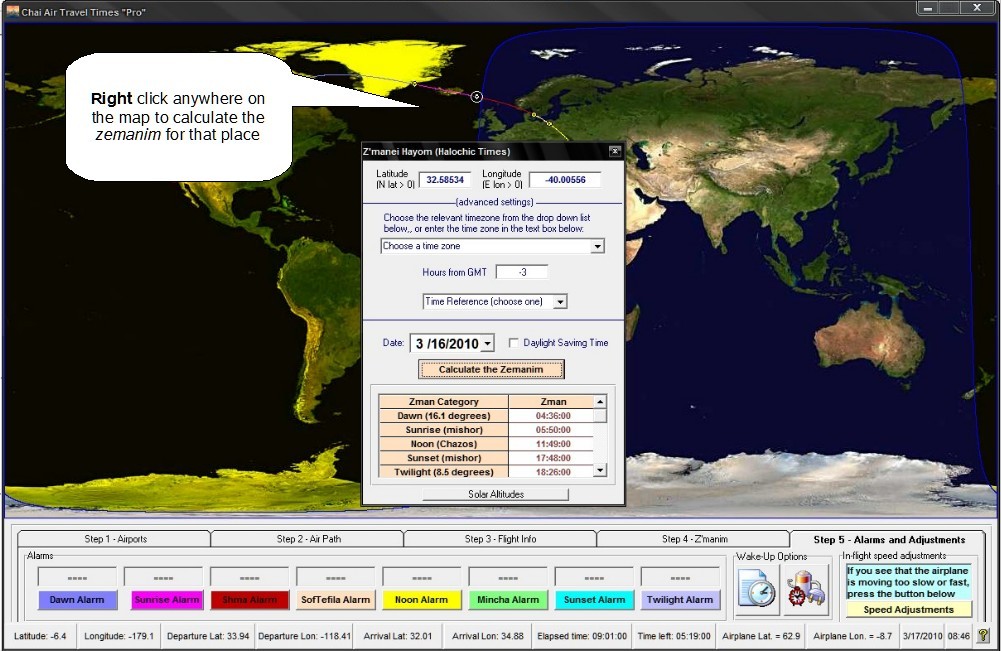
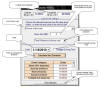
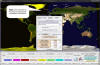
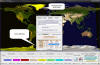
Right click on any place on the map. A new dialog
box appears. Press the "Zemanim" button and the zemanim
for that place is calculated. You can pick the time zone and date of the
calculation. For Daylight Saving Time, check the Daylight Saving Time
checkbox.
|
 , ,
|
| |
|
| Solar Altitudes
and Azimuths
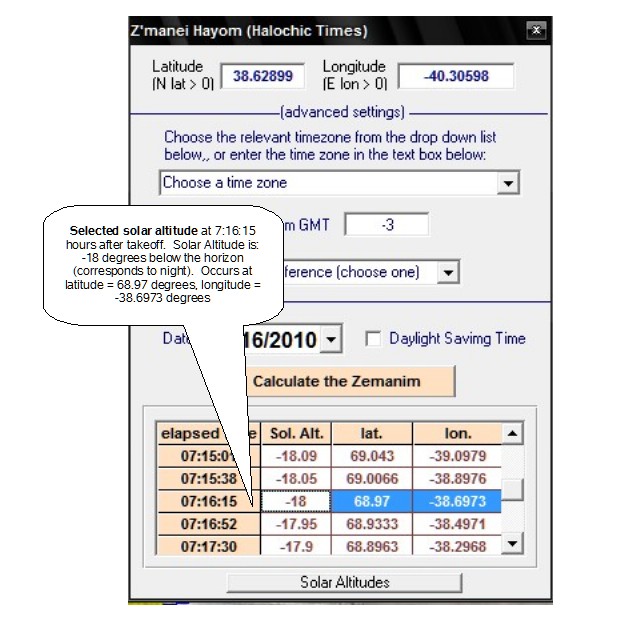
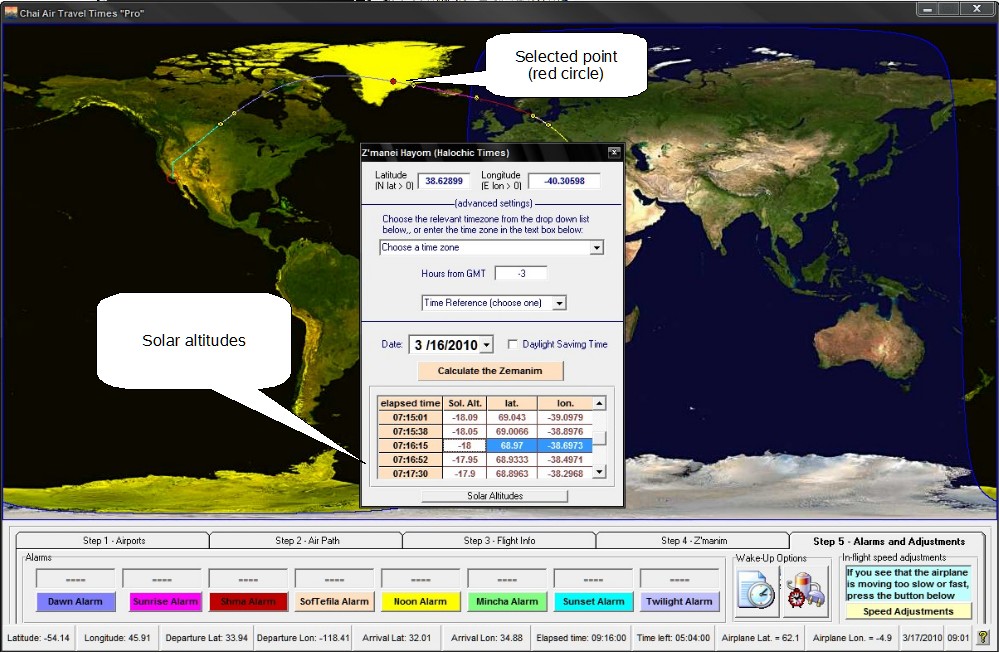
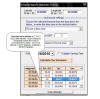
Right click on any place on the map. A new dialog
box appears. Press the "Solar Altitudes" button on the bottom on the
dialog box. The solar altitudes and azimuths along the route will be listed as a
function of elapsed time. The latitudes and longitudes of the flight path
are also listed as a function of elapsed time. If you click on any of the
rows, that entry will light up (as a red circle) on the flight path. The
middle of the sun is on the horizon for solar altitudes equal to zero.
Dawn occurs for a solar altitude (depression) of -16.1 degrees. Twilight
occurs at a solar altitude of -8.5 degrees.
|
 , ,
|
| |
|
| Offline Help
Your installation program installs the tutorials in your program file.
Otherwise, download the video
tutorials from the links given on the online documentation, and place them in your program directory.
This directory is typically C:\Program
Files\ChaiAirTimesPro\". These videos can be accessed from
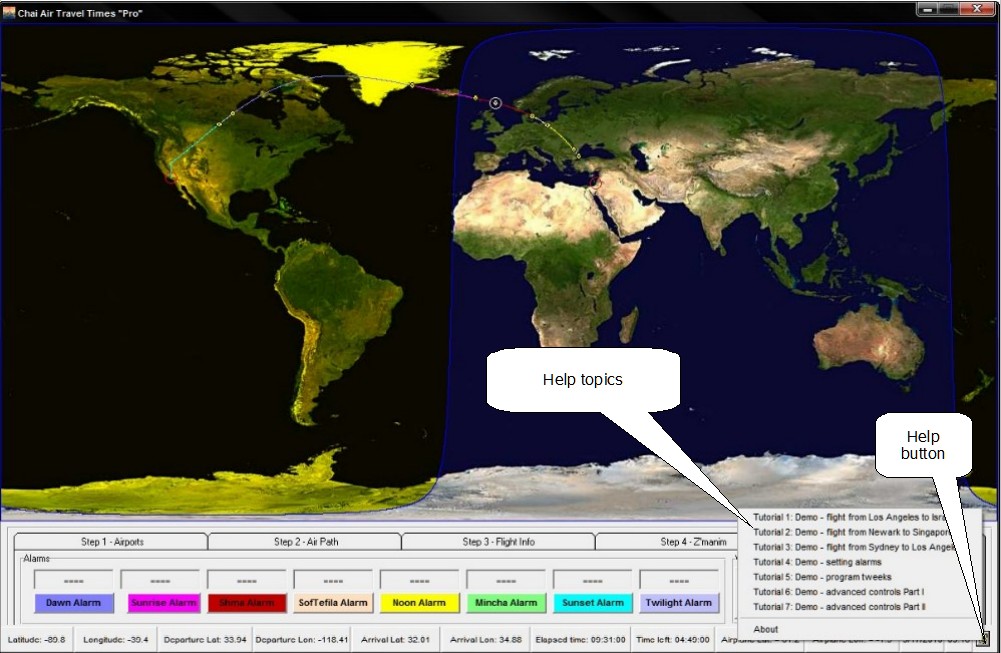
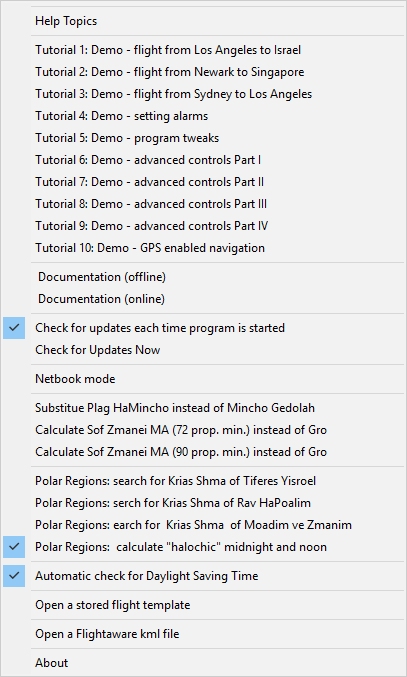
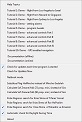
the program's "help" button on the bottom right of the status bar. Picture 2
shows the help menu for version 4.2.0. Notice that you can
activate/deactivate finding the latest update, as well as placing the computer
in "Netbook" mode. You can also change the zemanim calculations.
For example, you can choose to calculate Plag Hamincha instead of Mincha Gedolah,
Sof Zman Krias Shma of the Mogen Avrohom instead of the Gro. You can also
search for sof zman Krias Shma of the morning Prayer when traveling through
Polar Regions having perpetual daytime by using the opinions of either the
Tiferes Yisroel (i.e., according to the departure airport), Ha Ben Ish Chai in
Rav Hapoalim (12 hours equal days and nights), and the opinion of Moadim ve
Zemanim (days are 24 hours long and begin at at midnight).
You can substitute Midnight for "Halochic Midnight", i.e., the program will
search for the place of minimum solar depression even if the sun is up, e.g.,
during the summer in the Arctic. Open a
previously stored flight template by clicking on the "Open..." menu item.
When not using GPS, gain better accuracy by downloading the kml file of the
flight path of the last flight of your flight number from fightaware.com and
uploading using the "Open a Flightaware kml file". Remeber to adjust the
departure and arrival times and dates to reflect your own flight.
|
 |
|
|